


JSONPath is a powerful way to query JSON data, but it can quickly become frustrating when an expression returns no results or behaves differently than expected. If you're searching for answers to queries like "JSONPath not working" or "fix JSONPath filter syntax", you're in the right place.
This debugging guide summarises the most common JSONPath errors and offers a clear process for fixing them. In most cases the JSON is fine – the problem lies in the path expression. By understanding typical mistakes, you can troubleshoot and correct your queries quickly.
We explain why JSONPath expressions fail, the most common mistakes, and how to debug them step by step using real examples. Whether you're a beginner or need to debug a complex expression, this page serves as a complete JSONPath debugging guide.
Why JSONPath Expressions Return No Results
When a JSONPath query returns an empty result, one (or more) of the following issues is usually the cause:
- Incorrect root path (
$) - Typo in property names (JSONPath is case-sensitive)
- Invalid filter syntax
- Wrong comparison operator
- Differences between JSONPath libraries
- Unexpected JSON structure (array vs object)
The fastest way to fix a “JSONPath no results” situation is to debug the expression step by step instead of guessing.
Common JSONPath Mistakes That Break Queries
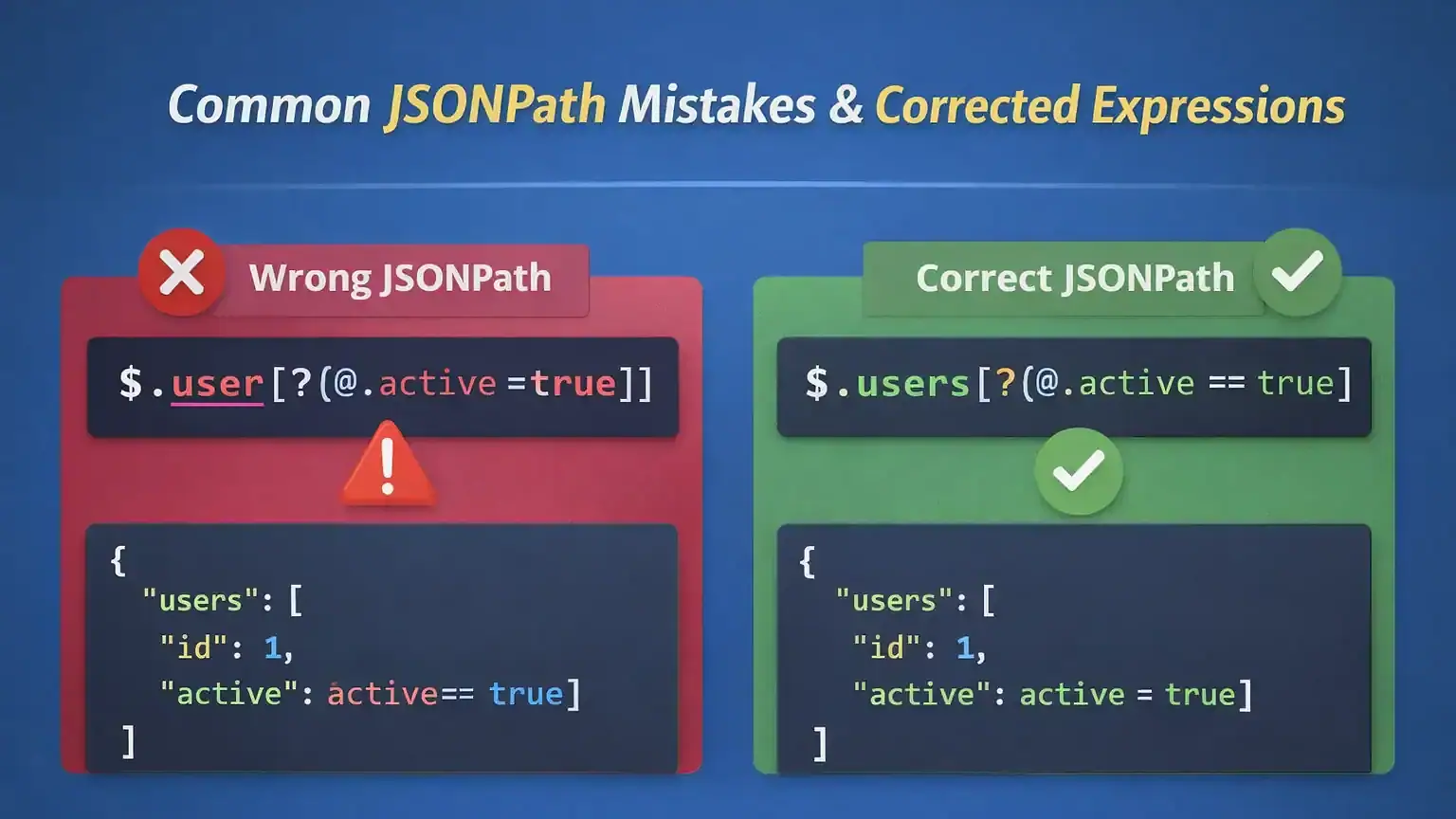
Below is a quick reference table summarising the mistakes described in this guide and how to correct them.
| Issue | Incorrect expression | Correct expression |
|---|---|---|
| Missing root | users[*].id |
$.users[*].id |
| Case sensitivity | $.users[*].id (data has Users) |
$.Users[*].id |
| Invalid filter syntax | $.users[?(@.active=true)] |
$.users[?(@.active == true)] |
| Confusing arrays & objects | $.user[?(@.id == 1)] (data is an object) |
$.user.id |
| Type mismatch | $.users[?(@.active == true)] (value is string) |
$.users[?(@.active == "true")] |
1) Missing or Incorrect Root ($)
JSONPath expressions usually start from the root object:
❌ users[*].id
✅ $.users[*].id
2) Property Name Typos or Case Sensitivity
JSONPath is case-sensitive:
{
  "Users": [{ "id": 1 }]
}
❌ $.users[*].id
✅ $.Users[*].id3) Invalid Filter Syntax
Filters are a common source of “JSONPath not working” problems:
{
  "users": [
    { "id": 1, "active": true }
  ]
}
❌ $.users[?(@.active=true)]
✅ $.users[?(@.active == true)]
Many implementations expect explicit comparison operators (for example == instead of =).
4) Confusing Arrays and Objects
Trying to filter an object like an array often returns empty results:
{
  "user": { "id": 1 }
}
❌ $.user[?(@.id == 1)]
✅ $.user.id5) Strings vs Booleans vs Numbers
Type mismatches can silently break filters:
{
  "users": [
    { "id": 1, "active": "true" }
  ]
}
❌ $.users[?(@.active == true)]
✅ $.users[?(@.active == "true")]How to Debug JSONPath Step by Step
Step 1: Validate the JSON First
If your JSON is invalid, any debugging is wasted effort. Use a linter or validator to ensure the JSON is well‑formed before tuning your path.
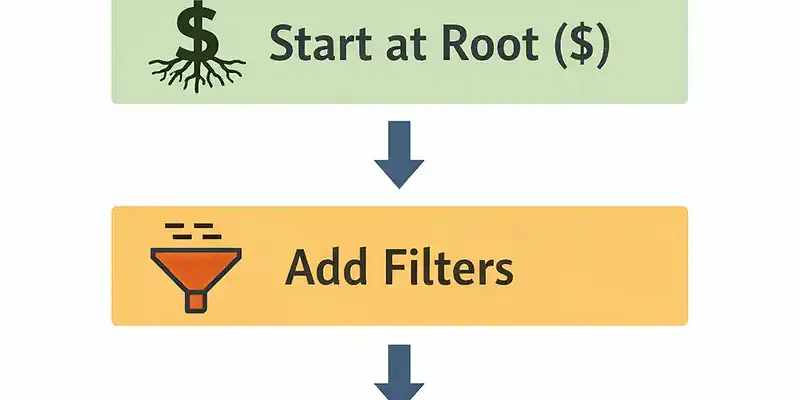
Step 2: Start Simple
Begin at the root and expand gradually:
$
$.users
$.users[*]
Step 3: Add Filters Last
First confirm the path returns the nodes you expect, then filter:
$.users[*].active
$.users[?(@.active == true)]
Step 4: Test Incrementally
Build the expression piece by piece. If a step fails, the mistake is very likely in the last change you made.
Want a faster workflow? Test each step in a validator so you can see results instantly. Our JSONPath validator offers features like suggested expressions, a clickable JSON tree and sharable links for easier collaboration.
👉 Use our tool to test and debug expressions: JSONPath Validator (Online Evaluator) .
Advanced JSONPath Cases
For more complex scenarios, JSONPath provides powerful features such as regular expressions, built‑in functions, multi‑select paths and logical operators. The following examples go beyond the basics and demonstrate how you can combine these features in real‑world situations.
Regex filters: extracting email addresses
Regular expressions allow you to match patterns within string values. For example, to extract email addresses from a list of users whose domain is example.com:
{
  "users": [
    { "email": "alice@example.com" },
    { "email": "bob@test.org" },
    { "email": "carol@example.com" }
  ]
}
$.users[?(@.email =~ /@example\.com$/)].email
Using length() to filter arrays by size
The length() function returns the number of elements in an array. You can use it to select objects where an array has a certain length. For instance, to find teams with three or more members:
{
  "teams": [
    { "name": "Team A", "members": ["Alice","Bob","Carl"] },
    { "name": "Team B", "members": ["Dave","Eve"] }
  ]
}
$.teams[?(@.members.length() >= 3)].name
Multi‑select and unique values
You can select multiple fields at once by grouping them in brackets. The following expression returns a list of names and IDs from all users. To obtain unique values, post‑processing may be necessary or you can use a library that implements a distinct() function:
{
  "users": [
    { "id": 1, "name": "Alice" },
    { "id": 2, "name": "Bob" },
    { "id": 3, "name": "Alice" }
  ]
}
$.users[*]['name','id']
Combining filters with logical operators
Filters can include multiple conditions combined with logical operators like && (and) and || (or). For example, to select active users who are at least 26 years old:
{
  "users": [
    { "name": "Alice", "active": true,  "age": 25 },
    { "name": "Bob",   "active": false, "age": 30 },
    { "name": "Carol", "active": true,  "age": 28 }
  ]
}
$.users[?(@.active == true && @.age >= 26)].name
This expression returns the names of active users who are at least 26 years old.
Differences Between JSONPath Implementations
JSONPath behavior can vary across libraries and tools. Some implementations support different operators, functions, or filter behavior. The standardized syntax defined in RFC 9535 – JSONPath: Query Expressions for JSON clarifies many edge cases, but not all libraries have adopted it yet.
If an expression works in one environment but fails in another, confirm what syntax that implementation supports. For the standardized syntax reference, see the RFC and our dedicated article on common JSONPath differences .
Here is a high‑level comparison of typical features across various implementations:
| Feature | Standard (RFC 9535) | Variations in some libraries |
|---|---|---|
| Equality operator | Use == and != for comparison |
Some older libraries allow single = (assignment) which results in unexpected behavior |
Deep scan (..) |
Supported and returns all matching nodes recursively | Some implementations limit deep scan to objects or handle arrays differently |
| Regex filters | Use =~ /pattern/ with delimiters (e.g. $.users[?(@.email =~ /@example\\.com$/)]) |
Not all libraries support regular expressions or may use a different syntax |
| Return type when no match | Returns an empty array | Some return null or throw an exception |
| Ordering of results | Stable ordering as they appear in the document | Some implementations reorder results or deduplicate values |
| Function support | Allows functions such as length(), keys(), min() and max() |
Some implementations do not implement functions or use different names |
| Error handling | Silently returns an empty array when no match or syntax error occurs | Some libraries throw exceptions or return null on errors |
| Nested filter & deep search | Supports nested filters and deep searches on both objects and arrays | Some libraries only allow shallow filters or restrict deep searches |
| Multi‑select grouping | Supports selecting multiple keys with ['name','id'] |
Not universally supported; some libraries lack grouping capability |
| Library examples | Modern libraries (Jayway, jsonpath‑plus, JsonPath for .NET) implement the RFC and advanced features | Legacy libraries follow the older Goessner proposal and may lack RFC features |
As you can see, the RFC describes the expected behavior; however, many libraries still follow the older Goessner proposal or have their own quirks. When in doubt, consult the library’s documentation or test your expression in multiple tools.
Test and Fix JSONPath Expressions Online
The fastest way to debug JSONPath expressions is to test them interactively:
- See results instantly
- Test expressions step by step
- Catch syntax and type issues early
Paste your JSON and expression here to debug in real time: Open the JSONPath Validator . The tool supports saving and sharing links, downloadable results and a clickable JSON tree for building paths.
FAQ
Why does my JSONPath return empty results?
Most often due to an incorrect root path, a typo in property names, invalid filter syntax, type mismatches, or differences between JSONPath implementations.
How do I debug a JSONPath expression?
Start from $, build the path incrementally, verify each step returns data, then add filters last.
Testing in a validator makes this much faster.
Does JSONPath behave differently across libraries?
Yes. Feature support and edge‑case behavior can vary. If results don’t match, check that library’s docs and compare against RFC 9535.
What is the fastest way to test JSONPath?
Use an online JSONPath validator to test expressions interactively and confirm results instantly.
Final Thoughts
When JSONPath is not working, the solution is usually simple—but hard to spot without a consistent process.
Debug from root, test incrementally, and validate filters last. If your expression returns no results, don’t guess—debug it properly.
Ready to debug now? → Try the JSONPath Validator

